UI/UX Design: the process that turns “looks nice” into “feels effortless”
Most people don’t wake up thinking, “Wow, I hope this app has great UX today.” They just want to book the appointment, pay the bill, find the info, and move on with their life. UI/UX design is what makes that whole experience feel obvious instead of annoying.
When UI/UX is done right, users don’t notice the design. They notice that they didn’t have to think too hard, didn’t get stuck, and didn’t feel uncertain. That’s the real win.
Images for this post (with placement + alt text)
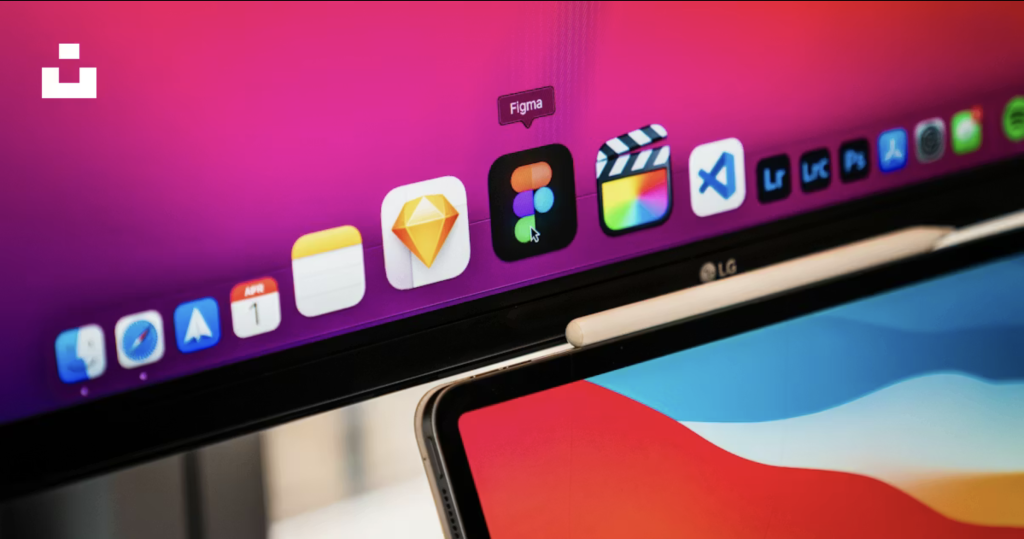
Use the Figma close-up image as your hero at the top of the blog post. It instantly signals “digital product design,” and it works great behind a title overlay if you want a modern header. Suggested alt text: Figma app icon on a computer screen
Use the sketchbook drawing image in the section where you talk about wireframes and early concepts. It visually reinforces the idea that good UX starts messy and gets refined, not the other way around. Suggested alt text: Sketch on paper in a notebook
Use the sticky notes wall image in the research or “defining the problem” section. Sticky notes are basically the universal symbol for “we talked to users and organized what we learned,” so it fits perfectly. Suggested alt text: Sticky notes arranged on a wall for UX research
Use the whiteboard sticky notes image in the usability testing or iteration section. It pairs well with the idea of prioritizing feedback and turning it into clear fixes. Suggested alt text: Sticky notes on a whiteboard during a planning session
UI vs UX (without the internet arguing about it)
UX (User Experience) is the full experience someone has while trying to accomplish a goal, including how they feel about it. Nielsen Norman Group describes UX as covering all aspects of the end-user’s interaction with a company, its services, and its products.
UI (User Interface) is the part people actually see and interact with: layout, typography, colors, spacing, buttons, forms, and all the tiny states (loading, error, disabled, success). UI is a big part of UX, but it’s not the whole story.
A simple way to remember it: UX is the route and the rules of the road. UI is the dashboard, the signs, and how smooth the ride feels.
The UI/UX design process (the real one, not the fantasy version)
1) Discovery: align on goals before you touch Figma
Discovery is where you stop the project from turning into “can we also add one more thing?” every other day. You clarify what success actually means, who the users are, and what constraints you must respect (timeline, budget, platform, content readiness, integrations, legal requirements, and so on).
If you skip this, you usually end up redesigning the redesign later because everyone had a different picture of the destination.
2) Research: find out what users actually need, not what we assume
Research can be lightweight and still powerful. Even a handful of real conversations can expose the gap between what you think users do and what they actually do. You’re trying to learn motivations, pain points, language they naturally use, and what “trust” looks like in your specific industry.
This is the core idea behind human-centered design: building around users and their context instead of designing from the inside out. ISO’s guidance on human-centered design focuses on design activities across the lifecycle to improve human-system interaction.
3) Define: turn research into a clear problem statement and priorities
This is where sticky notes earn their keep. You synthesize what you learned into patterns, then turn those patterns into decisions: what matters most, what can wait, and what is out of scope. Without this step, teams often build a bunch of “nice features” but miss the one thing users came to do.
A good output here is a short problem statement plus a ranked list of top user tasks, because it gives the project a spine.
4) Information architecture: make the structure feel obvious
Information architecture is how you organize pages, sections, and navigation so users can predict where things are. When IA is good, users feel like they’re “finding” things. When it’s bad, users feel like they’re “searching” for things, and that subtle difference kills confidence.
This step usually produces a sitemap and content hierarchy, and it’s one of the fastest ways to improve conversions without changing visuals much.
5) User flows: map the journey and remove friction
Flows answer questions like: “How does someone go from landing on the site to completing the main goal?” For a service business, that might be from homepage to service page to proof to booking. For an app, it might be onboarding to first successful action to repeat usage.
The key is spotting friction early, before you spend time polishing screens that lead nowhere.
6) Wireframes: design the layout before you design the vibe
Wireframes are low-detail layouts that focus on structure: what’s on the screen, in what order, and what gets emphasized. This is where you solve clarity problems cheaply. It’s way easier to move boxes around than to redo a high-fidelity UI later when someone realizes the page is confusing.
Wireframes also help you separate “What does this need to say?” from “What should this look like?” which is honestly a superpower on client projects.
7) Prototyping: make it clickable so reality can speak up
A clickable prototype is where assumptions go to get tested. People can nod at a static design and still be confused in real use. Prototypes let you see whether users understand labels, navigation, and the order of information without you explaining it.
Even a basic prototype can prevent weeks of wrong development, which makes it one of the best ROI steps in the entire process.
8) UI design: bring consistency, hierarchy, and polish
This is the “make it look good” phase, but it’s not just decoration. Strong UI design creates visual hierarchy so users know what matters first, what’s secondary, and what action to take. It also creates consistency so users don’t have to relearn patterns on every screen.
Good UI is basically kindness. It reduces cognitive load and makes the product feel calm instead of chaotic.
9) Accessibility: design so more people can actually use it
Accessibility is not just a checkbox, it’s part of good UX. The Web Content Accessibility Guidelines organize accessibility around four principles, often summarized as POUR: perceivable, operable, understandable, and robust.
When you design with these principles in mind, you end up with clearer interfaces for everyone, not just users with disabilities. That includes better contrast, clearer labels, keyboard-friendly forms, and fewer “mystery” interactions.
10) Design system (light or full): stop reinventing buttons every week
A design system can be as simple as a small set of reusable components and rules, or as deep as a full library with tokens and documentation. The value is consistency and speed: components behave the same, spacing feels coherent, and dev handoff becomes smoother.
Even a “mini system” for typography, buttons, forms, and alerts can prevent the slow drift into a messy UI over time.
11) Handoff: make sure the design survives development
Handoff is where you translate the design into build-ready guidance. That includes component states (hover, focus, disabled), responsive behavior, spacing rules, and copy for error messages. If you don’t specify these, the product ends up with random behaviors that feel sloppy, even if the layout looks similar.
A great handoff isn’t huge. It’s just clear.
12) Usability testing: watch real people use it, then fix what breaks
Usability testing is simple in concept: a facilitator asks a participant to complete realistic tasks while observing behavior and listening for feedback.
The point is not to “prove the design is good.” The point is to discover where the design fails real humans, then iterate. Even a few sessions can reveal issues you would never catch internally.
Common UI/UX mistakes that quietly wreck conversions
Mistake 1: Pretty UI, unclear messaging. If users don’t understand what you do in the first few seconds, the interface can be gorgeous and still lose them. Clarity beats clever every time, especially on service sites.
Mistake 2: Too many choices at once. When everything screams for attention, users freeze. A strong UX guides users with a clear primary action and supportive secondary options, instead of dumping the entire menu of possibilities on one screen.
Mistake 3: No error states or “what happens next.” Forms and flows fail in real life. If you don’t design for mistakes, users blame themselves and leave. Good UX includes helpful error messages, confirmations, and obvious next steps.
Mistake 4: Ignoring mobile reality. Mobile isn’t just “smaller desktop.” Tap targets, spacing, scrolling behavior, and thumb reach matter. If the site feels cramped or fiddly on a phone, conversions drop, period.
Mistake 5: Skipping accessibility basics. Low contrast text, missing focus states, and vague labels don’t just hurt accessibility, they hurt comprehension. The POUR principles are a solid north star here.
A practical “ship checklist” (each item is here because it saves you later)
One screen, one primary goal. Every page or screen should have a clear job. If you can’t summarize the job in one sentence, users will feel that confusion too.
Clear hierarchy in headings and layout. Users scan before they read. Make the structure obvious with headings, spacing, and a logical order that matches how people decide.
Forms that feel safe and forgiving. Use clear labels, helpful examples, and friendly error messages. People abandon forms when they feel uncertain, not just when they feel lazy.
Accessibility basics are in place. Check contrast, keyboard navigation, visible focus states, and readable text sizes. POUR is a helpful lens to keep this grounded.
At least a little usability testing happened. Even a few tests can catch major issues. The facilitator-plus-tasks-plus-participant setup is enough to reveal the big blockers.